

Müşteri memnuniyeti
Tüm hizmetlerimiz uzman ekibimiz tarafından titizlikle gerçekleştirilir ve %100 müşteri memnuniyeti garantisi altındadır. Yaptığımız her iş kalite, güven ve süreklilik güvencesiyle sunulmaktadır.

7/24 Destek
Verdiğimiz tüm hizmetleri yalnızca sunmakla kalmıyor, aynı zamanda sürekli destekliyoruz. İhtiyaç duyduğunuz her an yanınızda olarak, güvenilir, kesintisiz ve profesyonel destek sağlamayı taahhüt ediyoruz.

Hızlı ve güvenli hizmet
Hizmetlerimizi hız ve verimlilik odaklı sunuyoruz. İhtiyaçlarınıza en kısa sürede çözüm üreterek zaman kaybınızı önlüyor, kaliteli ve güvenilir hizmeti daima hızlı şekilde ulaştırıyoruz.
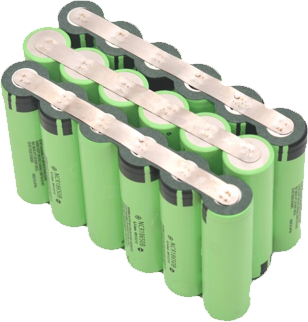
Bir ve Sıfır – Diyarbakır’da Lityum Pil Tamirinde Güvenilir Çözüm Ortağınız
Enerji çözümleri günümüzde her zamankinden daha fazla önem kazanıyor. Özellikle lityum piller, yüksek verimlilikleri, uzun ömürleri ve çevre dostu yapılarıyla hayatımızın birçok alanında kullanılmaktadır. Ancak zamanla performans kaybı yaşayan veya arızalanan lityum piller, doğru ellerde onarıldığında yeniden uzun süre kullanılabilir hale gelir. İşte tam bu noktada, Diyarbakır’da faaliyet gösteren Bir ve Sıfır firması devreye giriyor.
Bir ve Sıfır olarak, lityum pil tamiri konusunda uzmanlaşmış ekibimizle müşterilerimize güvenilir, ekonomik ve kaliteli hizmet sunuyoruz. Sadece pillerinizi onarmakla kalmıyor, aynı zamanda enerji verimliliğini artıracak çözümler de geliştiriyoruz. Çeşitli cihazlarda kullanılan lityum pillerin tamiri, hücre yenilemesi, kapasite testleri ve güvenlik kontrolleri firmamızın uzmanlık alanları arasında yer alıyor.
Firmamız, müşteri memnuniyetini öncelik edinerek, her tamir işleminde uluslararası standartlara uygun yöntemler uygulamaktadır. Böylece hem cihazlarınızın ömrünü uzatıyor hem de enerji maliyetlerinizi düşürüyoruz. Ayrıca, geri dönüşüm ve yeniden kullanım odaklı yaklaşımımızla çevreye de katkı sağlamayı amaçlıyoruz.
Diyarbakır ve çevresinde lityum pil tamiri denildiğinde akla gelen ilk isimlerden biri olmanın gururunu yaşıyoruz. Güvenilirlik, şeffaflık ve profesyonellik ilkelerimiz doğrultusunda, her müşterimize en uygun çözümleri sunmayı sürdürüyoruz.
Eğer siz de lityum pilinizin ömrünü uzatmak, performansını artırmak ve güvenli kullanım sağlamak istiyorsanız, Bir ve Sıfır ailesi olarak sizleri bekliyoruz. Enerjinizi korumak ve geleceğe taşımak için yanınızdayız.